

AI Text-to-Image Prompt Guide
Learn how GPT-IMG turns text prompts into tracked AI image jobs, with model choices, aspect ratios, quality tiers, credits, and History.
AI text-to-image generation works best when the prompt is specific enough for a model to make visual decisions without guessing. In GPT-IMG, that prompt is only the first step: the workspace also asks you to choose a model, aspect ratio, resolution, quality where available, and credit cost before the job runs.
Created: June 21, 2026. Updated: June 21, 2026.
From prompt to tracked image job
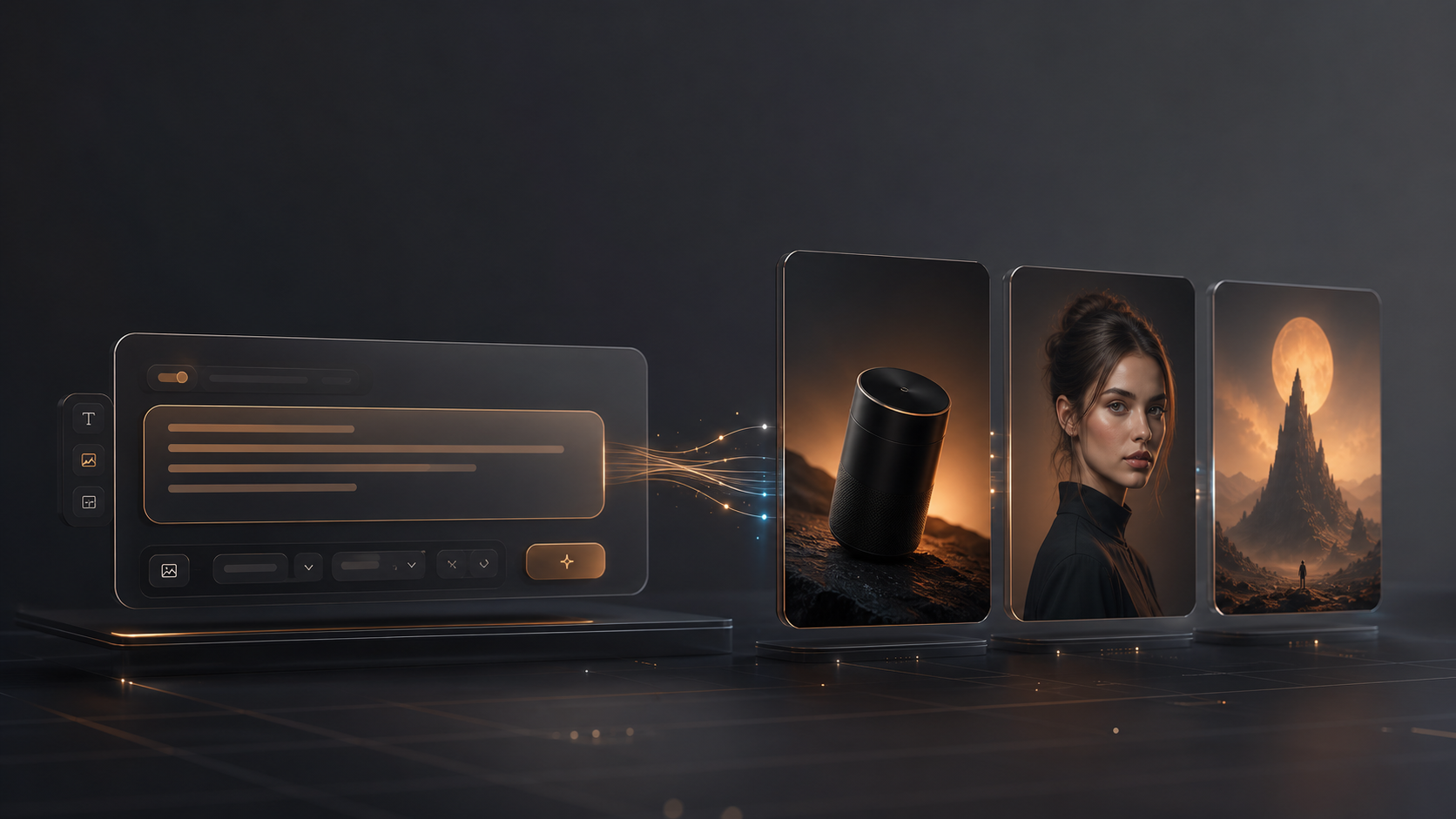
GPT-IMG treats each generation as a tracked workflow, not a one-off button click. After you sign in, the Generate page validates your prompt, records a pending History item, shows the credit cost, and sends the job into the image workflow.
That matters when a request takes longer than a browser tab can comfortably wait. The page can poll for progress, but your History remains the place to recover late results, retry a useful prompt, and download finished images.
Use the Text to Image page when you want to start from words only. Use Generate when you are continuing from a Gallery prompt, retrying a previous result, or moving between text-only and reference-image workflows.
Choose the right model first
The best prompt still depends on the model you choose.
- GPT Image 2 is the strongest default when instruction following, readable in-image text, product compositions, posters, or photoreal control matter.
- Nano Banana 2 is useful for fast exploration and lower-cost creative iteration across 1K, 2K, and 4K output tiers.
- Nano Banana Pro is the better choice when you want more polished detail for product visuals, portraits, and finished creative concepts.
All public models support common aspect ratios such as 1:1, 3:2, 4:3, 9:16, and 16:9. GPT Image 2 also exposes Standard, Medium, and High quality tiers, so it is the model where quality choices have the clearest pricing impact.
Write prompts with visual roles
Weak prompts usually ask for a category. Strong prompts assign visual roles: subject, purpose, composition, environment, lighting, material detail, and constraints.
Use this structure:
Subject + intended use + composition +
environment + lighting + camera/style +
material detail + constraints
For example:
A premium ecommerce hero image of a matte black
wireless speaker, centered in a 1:1 composition
on dark stone, warm rim light, softbox reflections,
realistic fabric texture, clean negative space,
no text.
This gives the model a job to perform. It also makes retries easier because you can change one part at a time: the lighting, the background, the ratio, or the final use case.
Use credits as an iteration tool
GPT-IMG shows the expected credit cost before submission. That makes it practical to separate drafting from final output.
Start with a cheaper setup when you are still finding the image direction. Move to 2K, 4K, or High quality only after the prompt has the right subject, framing, and style. Failed workflow jobs are designed to refund credits, but successful retries still consume credits, so controlled iteration saves time and balance.
Reuse what already worked
The fastest way to improve an AI text-to-image prompt is to reuse a working one. Browse the Gallery, open a prompt detail, start from a previous creation, or retry a History item when you want to keep the same direction.
Before you generate, check three things:
- The prompt says what should be visible and what should be avoided.
- The aspect ratio matches the final placement, such as square social posts or landscape banners.
- The model and quality tier match the job, not just the highest possible setting.
Ready to make a prompt concrete? Open Text to Image, draft at a lower tier, then move the best version into final quality. If an uploaded image needs to guide the result, use the reference image workflow guide instead.