

How To Use Reference Images In GPT-IMG
Learn when to use reference images in GPT-IMG, how image-to-image generation works, and how to choose edits, variations, models, and credits.
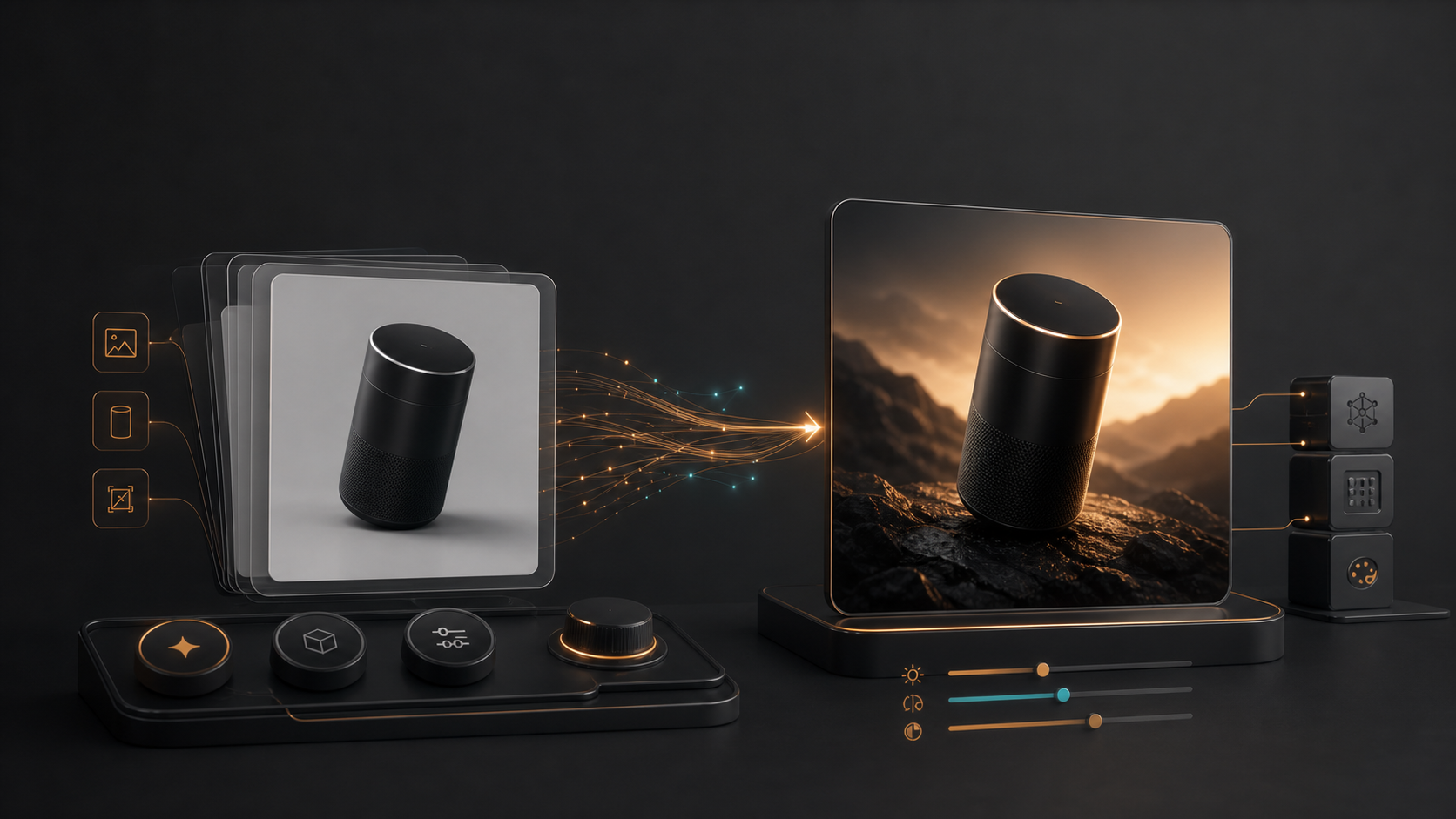
Reference images are useful when text alone cannot describe what must stay consistent. In GPT-IMG, uploading a reference image turns the request into an image-to-image workflow: the image provides visual grounding, and your prompt explains what should change.
Created: June 21, 2026. Updated: October 4, 2026.
What image-to-image means
Image-to-image generation is not a full brush-and-mask editor. GPT-IMG currently supports reference uploads, prompt instructions, model controls, aspect ratio, resolution, quality where supported, visible credit cost, History, and failed-job refunds.
The practical rule is simple:
- The reference image tells GPT-IMG what to preserve.
- The prompt tells GPT-IMG what to change.
Use Image to Image when a product shape, portrait identity, room layout, sketch structure, or existing visual style needs to carry through into the output.
When a reference image helps
Reference images improve results when consistency matters more than a blank-canvas concept.
Good use cases include product restyling, portrait variations, background replacement, interior redesign, sketch-to-render work, and campaign variants from a previous generated image. A clean reference gives the model fewer things to infer, especially when you need a specific subject, silhouette, camera angle, or material quality.
Use text-to-image generation instead when you only need a broad new concept, such as "a product photo" or "an editorial portrait," and no real subject or layout must be preserved.
Edit vs variation
In GPT-IMG, edit and variation are user intentions that run through the same reference-image workflow.
Use an edit prompt when you want specific changes:
Use the uploaded product photo as the shape
and material reference. Preserve the product
geometry, logo placement, color, and scale.
Replace the background with a premium dark
studio set, add realistic softbox lighting,
natural contact shadows, and a clean ecommerce hero
composition.
Use a variation prompt when you want broader exploration:
Use the reference image as inspiration for subject,
composition, and mood. Create a new variant with
a different color palette, more cinematic lighting,
and a refined campaign style while keeping the
main subject recognizable.
The sharper your preservation instruction, the more the workflow behaves like an edit. The broader your style instruction, the more it behaves like a variation.
Pick the model for the reference job
GPT Image 2 is a strong choice when prompt precision, readable text, or quality tiers matter, but it supports one reference image at a time in GPT-IMG.
Nano Banana 2 and Nano Banana Pro can use up to five reference images in the current app flow. Use Nano Banana 2 for faster exploration and Nano Banana Pro when you need higher-detail output for product visuals, portraits, or polished creative work.
Keep every reference purposeful. One image might define the subject, another the style, and another the composition. Contradictory references usually produce weaker results. To work through a brief with several photos at once, see the multiple reference image generator, which covers how to name each photo's role in the prompt.
Checklist before generating
Before clicking Generate, confirm the file is JPEG, PNG, or WebP, under 10 MB, and visually clear. Then write the prompt in two parts: what to keep and what to change.
Choose 1K for drafts, then move to 2K or 4K once the direction is right. If a job keeps running after you leave the page, check History; the server workflow can still complete and attach the result to your account.
Start with Image to Image when you need control from a real visual source. Use Text to Image when you want GPT-IMG to invent the scene from scratch, then review the credits and History guide before scaling up final generations.
For worked examples that use two photos, see how to add a person to a photo, how to blend two images together, and a set of copyable ChatGPT image editing prompts.